Create a draft plan and add its first task
Turn a goal into a dated plan with an assigned department and a visible first task.
- Purpose
- Save a draft plan and a first planning task for team review.
- Who uses this
- Planning owners and authorized contributors.
- Before you start
- Sign in, open Planning & Rehearsal, and select the intended organization. Use fictional data in the demo workspace.
Set the plan's goal and dates
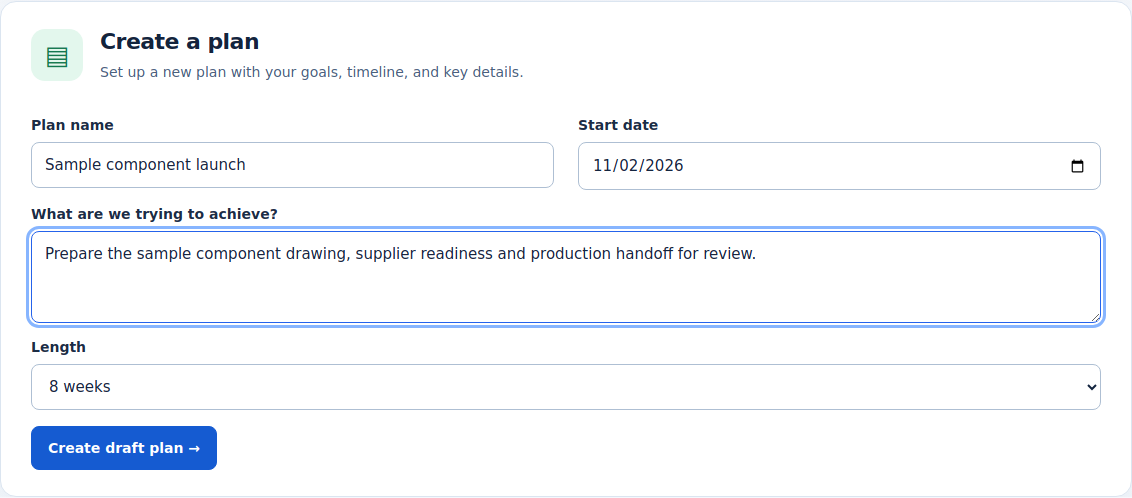
In Create a plan, enter a Plan name, Start date and a concrete goal under What are we trying to achieve? Choose a Length of 8, 10 or 12 weeks. The example is Sample component launch, starting 2 November 2026, for 8 weeks.
The form states the goal and planning window.
Actual NIV screen with fictional data. Select the image to view full size.
Save the draft
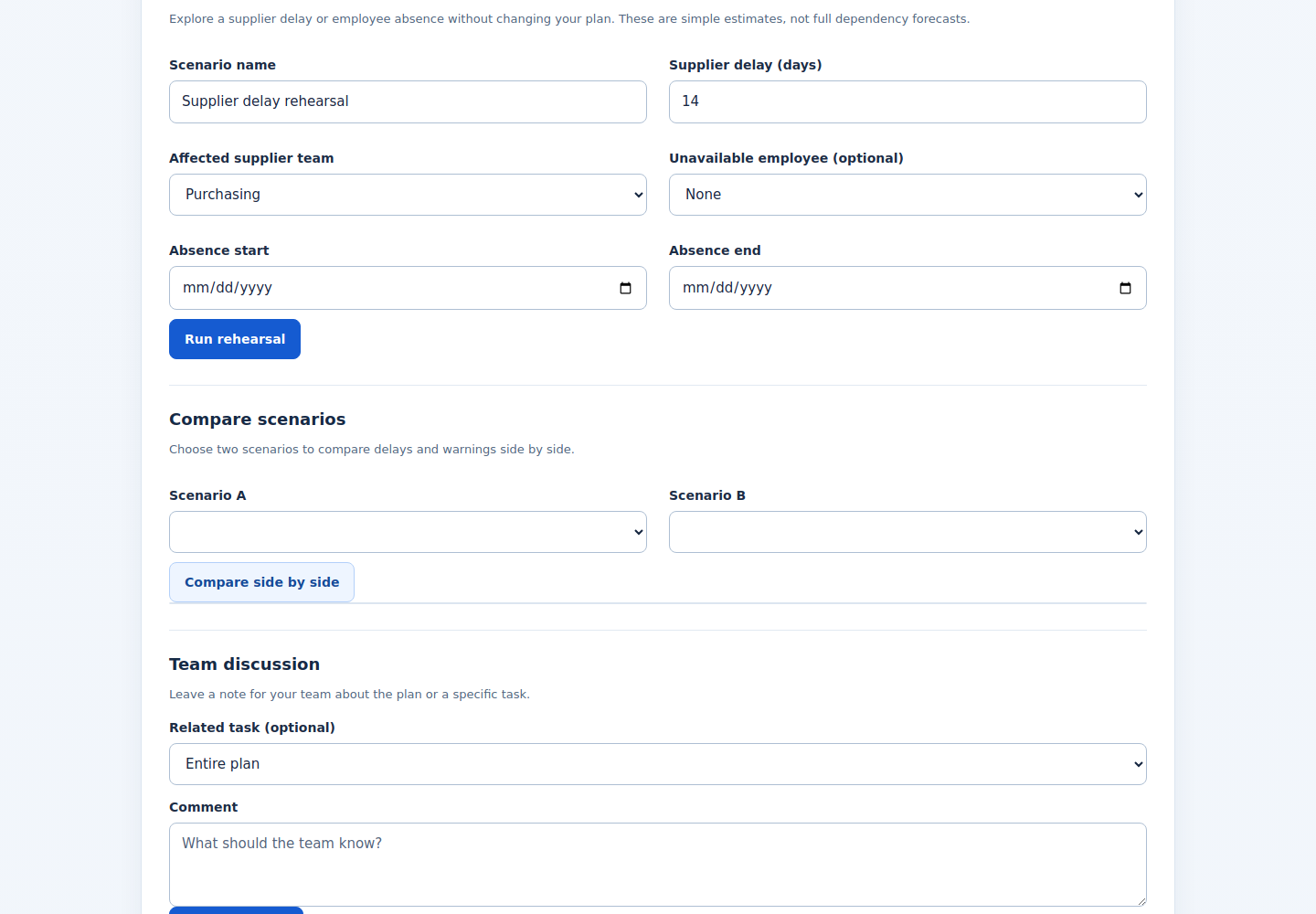
Select Create draft plan. Open the saved plan if it is not already selected.
The editor displays the plan name and DRAFT status.
Actual NIV screen with fictional data. Select the image to view full size.
Add the first task
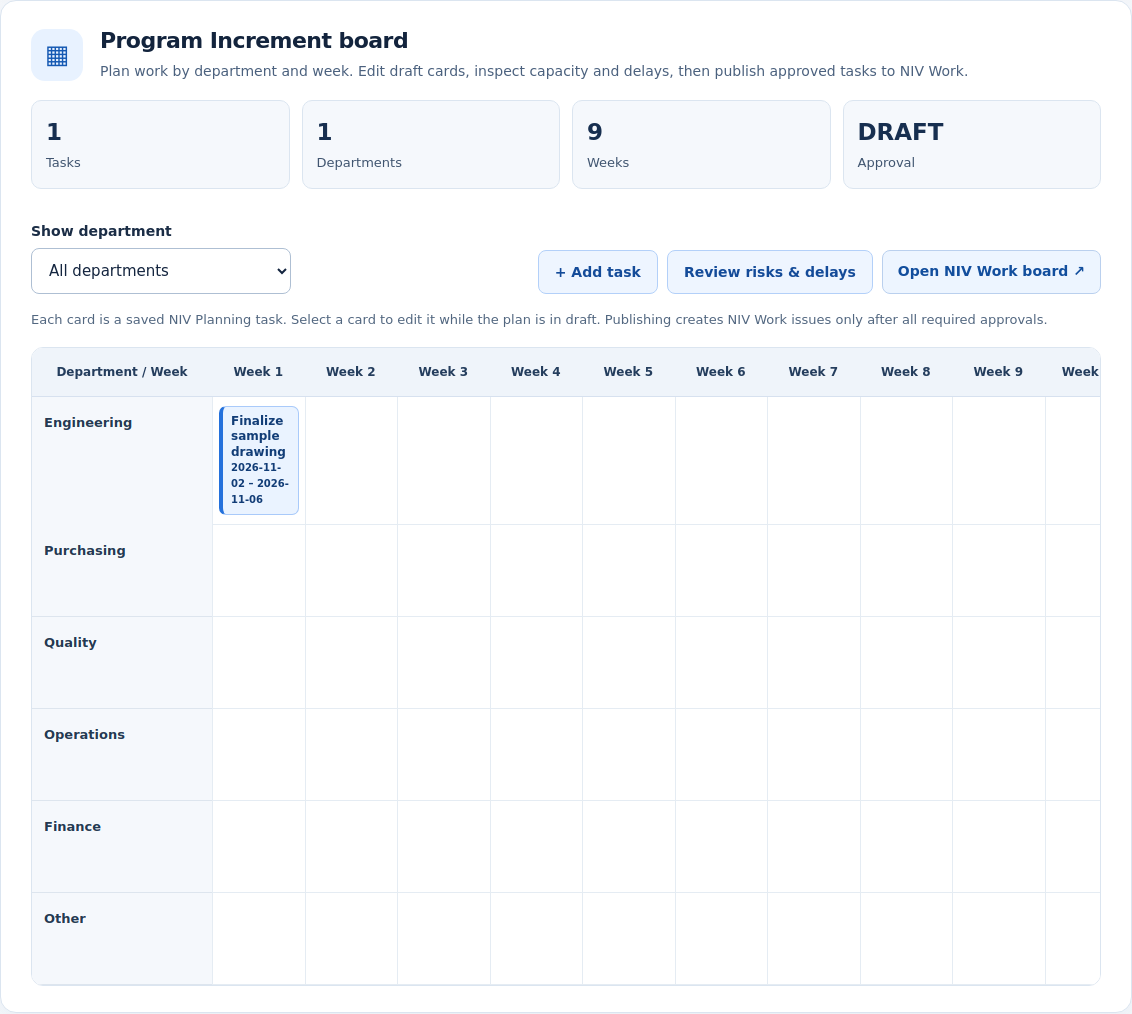
Under Add work item, enter Finalize sample drawing. Select Engineering, choose start and finish dates inside the plan window, and enter 8 estimated effort hours. Select Add task to PI board.
A saved task appears on the Program Increment board for the selected department and dates.
Actual NIV screen with fictional data. Select the image to view full size.
If something is wrong: If dates or effort are rejected, correct the indicated field before retrying. Do not change dates just to hide a real delay.
Check the plan before requesting review
Read the task's dates, department and effort on the board. Add the remaining work and capacity information before submitting the plan for approval. Publishing to NIV Work is a separate action after required approvals.
The initial draft is available for further planning, with no approval or publication implied.
Actual NIV screen with fictional data. Select the image to view full size.
Completion check
The saved plan remains DRAFT and its first task appears on the Program Increment board. No task has been published to Work.
These published examples explain NIV using fictional records. A copy in your company starts as a draft and follows your normal review and publication process.